

Dynon Data Manager is a small free program for your Windows PC or Mac that keeps your Dynon SkyView up to date. It downloads the latest aviation data for your panel — navigation data, obstacles, charts and approach plates — and copies it onto a USB memory stick. You then plug that stick into your SkyView.
That is the whole idea: computer → USB stick → SkyView. This article walks you through it once; after that an update takes a couple of minutes.
Required
a Frequent Flyer Membership licence or a Dynon Dataset-Only licence.
Optional: third-party charts and airport plates add-ons. Shop.a Windows computer (Windows 10 or 11) or a Mac (macOS 12 Monterey or newer, Apple Silicon or Intel).
an Internet connection.
your USB memory stick for Dynon, between 8 and 32 GB of storage. FAT32 format only.
the serial number of your master SkyView panel.
Why this method?
Dynon Data Manager does one job and does it well: it fills your Dynon USB stick. You do not need EasyVFR 4 installed, you do not need Dropbox, and you do not need to download files by hand from a webpage. Sign in once, add your serial number once, and from then on it is a single button each time your data expires.
1 - Install Dynon Data Manager
On Windows
Download the installer from dynondatamanager.pocketfms.com/download — this link always gives you the newest version.
Double-click the downloaded file.
It installs itself in a few seconds. You will not be asked for an administrator password — that is normal and intended.
When it is done, Dynon Data Manager opens, and you will find a shortcut on your Desktop and in the Start menu for next time.
Is it safe? The program is digitally signed by PocketFMS B.V., the makers of EasyVFR. If Windows shows a blue "Windows protected your PC" box, click More info and then Run anyway. This can happen with brand-new versions until Windows has seen them a few times.
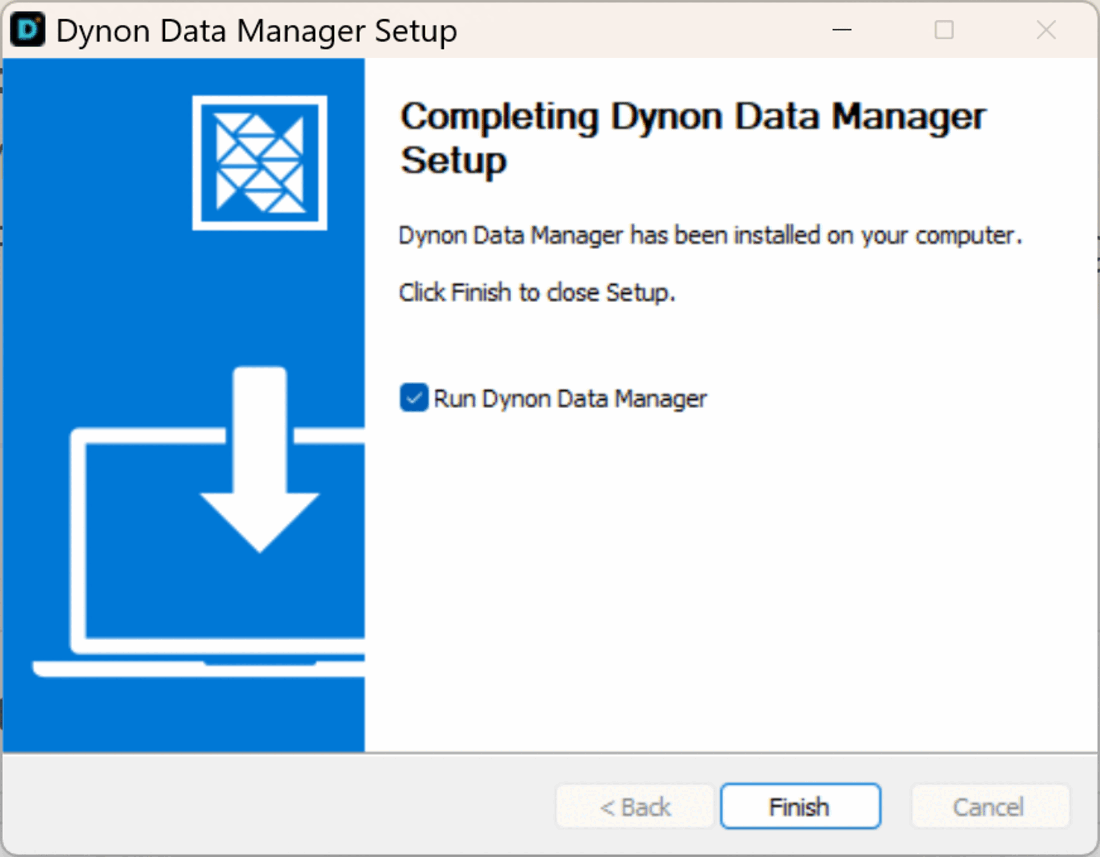
The installer finishes in a few seconds — leave "Run Dynon Data Manager" ticked and click Finish.
On a Mac
Download the program from dynondatamanager.pocketfms.com/download-MacOS-Silicon when you are using an Apple Silicon. Most Macs need the Apple Silicon version; only older Macs with an Intel processor need the Intel version. For these Apple Intel systems you can download the program from dynondatamanager.pocketfms.com/download-MacOS-Intel
Not sure which you have? Open the Apple menu → About This Mac. If that screen mentions Intel, choose Intel — otherwise choose Apple Silicon. Every Mac sold since 2021 is Apple Silicon.Double-click the downloaded
.dmgfile. A window opens showing the Dynon Data Manager icon next to your Applications folder.Drag the Dynon Data Manager icon onto the Applications folder in that window. That is the whole installation.
Open it from Launchpad or your Applications folder. You can keep it in the Dock for next time.
2 - Sign in with your EasyVFR account
Use the same account you use for EasyVFR. If you do not have one yet, create it first on the EasyVFR website.
Click Sign in with EasyVFR.
Your web browser opens. Log in there with your normal EasyVFR e-mail and password, and approve the request.
Your browser then shows a small box asking "Open Dynon Data Manager?". Click the Open Dynon Data Manager button — some browsers shorten this to Open or Open Link.
Important: click that button, not Cancel, even if Cancel looks highlighted. This is just the browser handing you safely back to the program.Back in the Dynon Data Manager window you are signed in, and it continues on its own.
New to this kind of login? Signing in through your browser is the modern, secure way to log in: your password is only ever typed into the official EasyVFR website, never into the program itself. The little "Open Dynon Data Manager?" box is simply your browser passing you back to the app after a successful login. It is completely normal and safe.
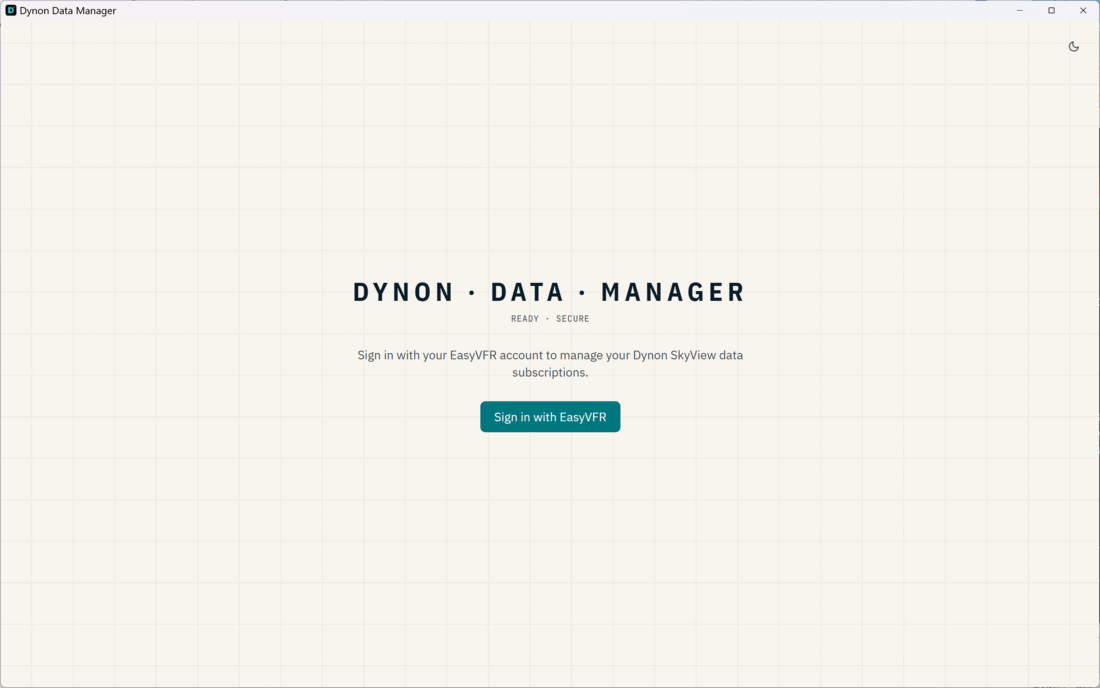
The start screen. Click "Sign in with EasyVFR".
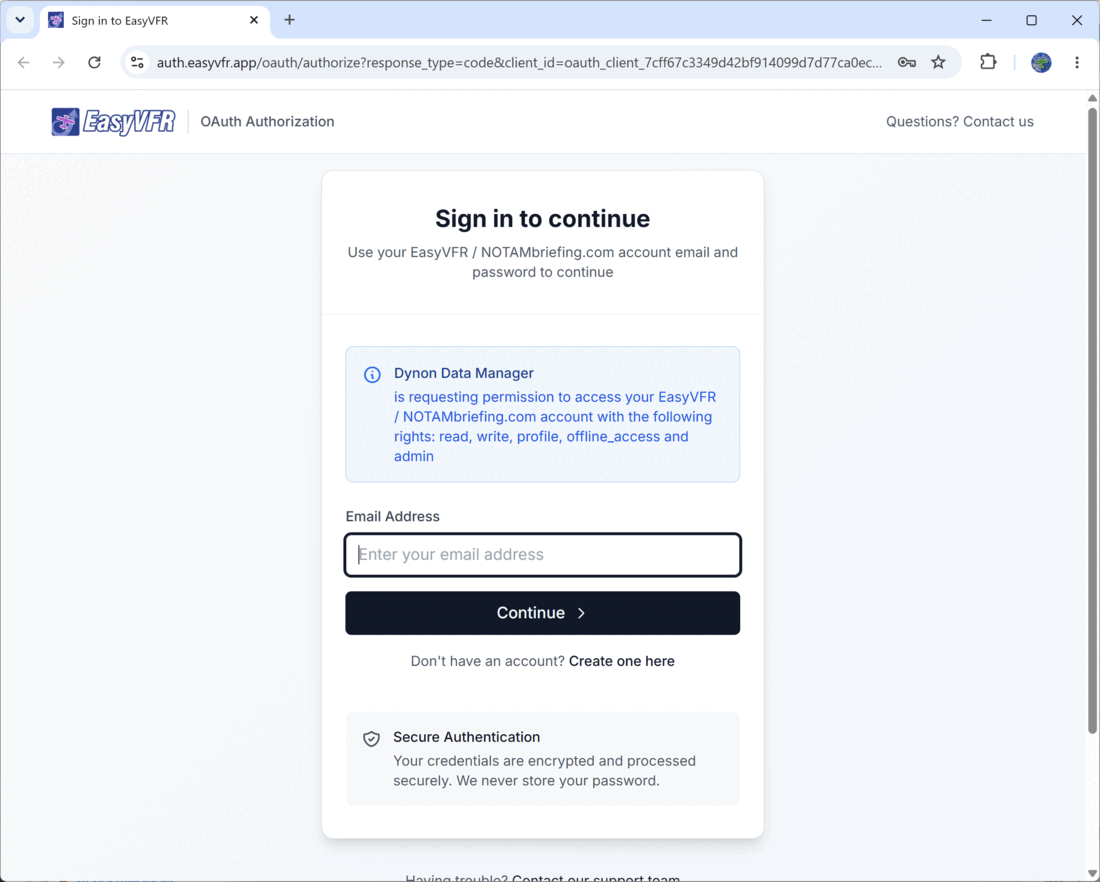
Your web browser opens — log in there with your EasyVFR account, then return to the program.
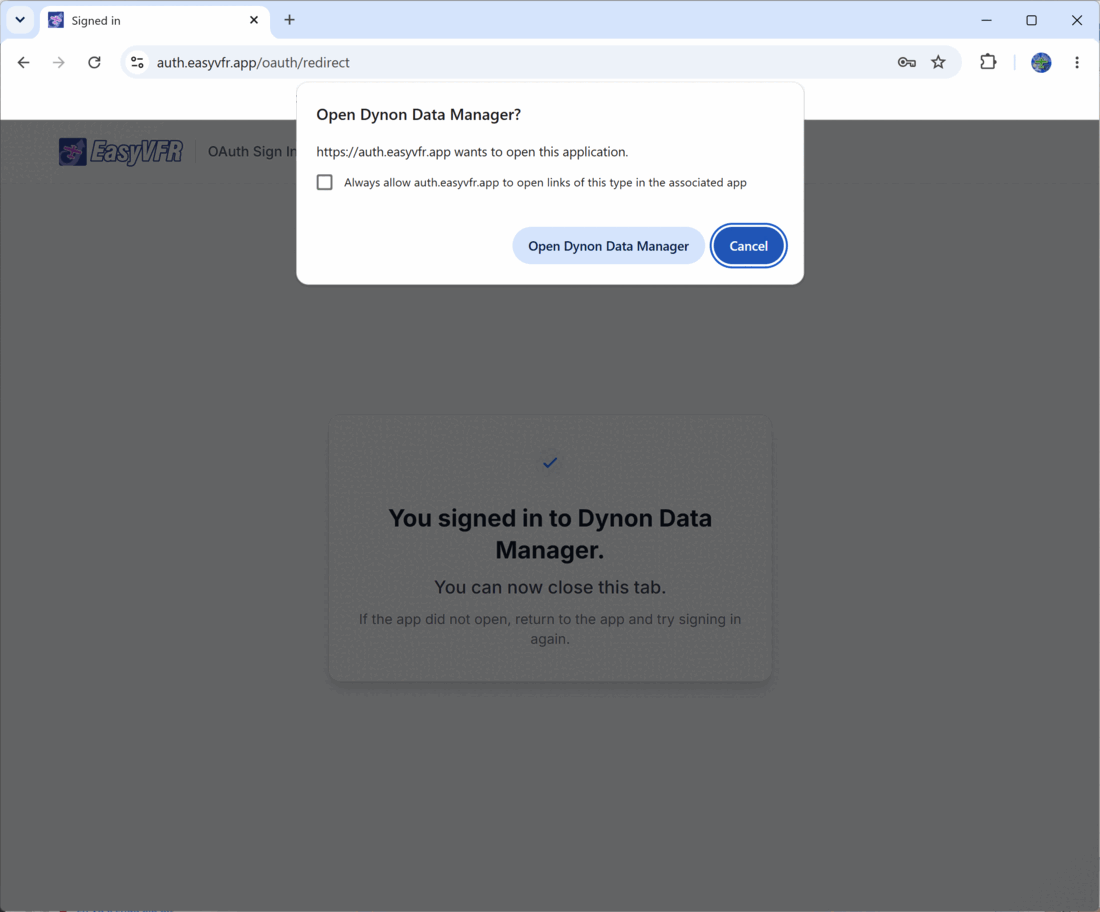
After you log in, your browser asks to open the program — click Open. You can then close the browser.
3 - Add your SkyView serial number
This tells the program which SkyView you are updating, so it can check your subscription and fetch the right data.
Click Add serial.
Type your serial number, for example
12345678.Choose your device type from the list: HDX1100, HDX800, HDX1200, D1000 or D700.
Click Continue. Your serial appears in the list with a coloured label showing its subscription status.
Where do I find my serial number? It is shown on the SkyView itself, in its system-information screen. You can add several serial numbers if you look after more than one aircraft — they all sit in the same list.
[ SCREENSHOT 05 — 05-add-serial-window.png ]
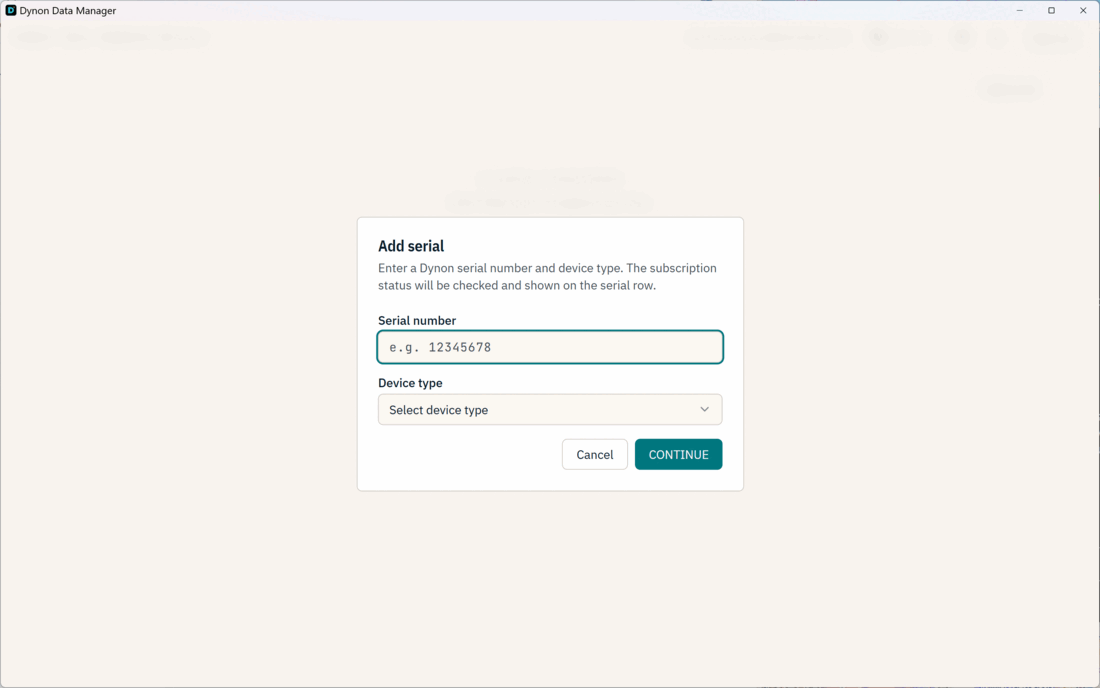
The "Add serial" window: type your serial number, choose your device type, then click Continue.
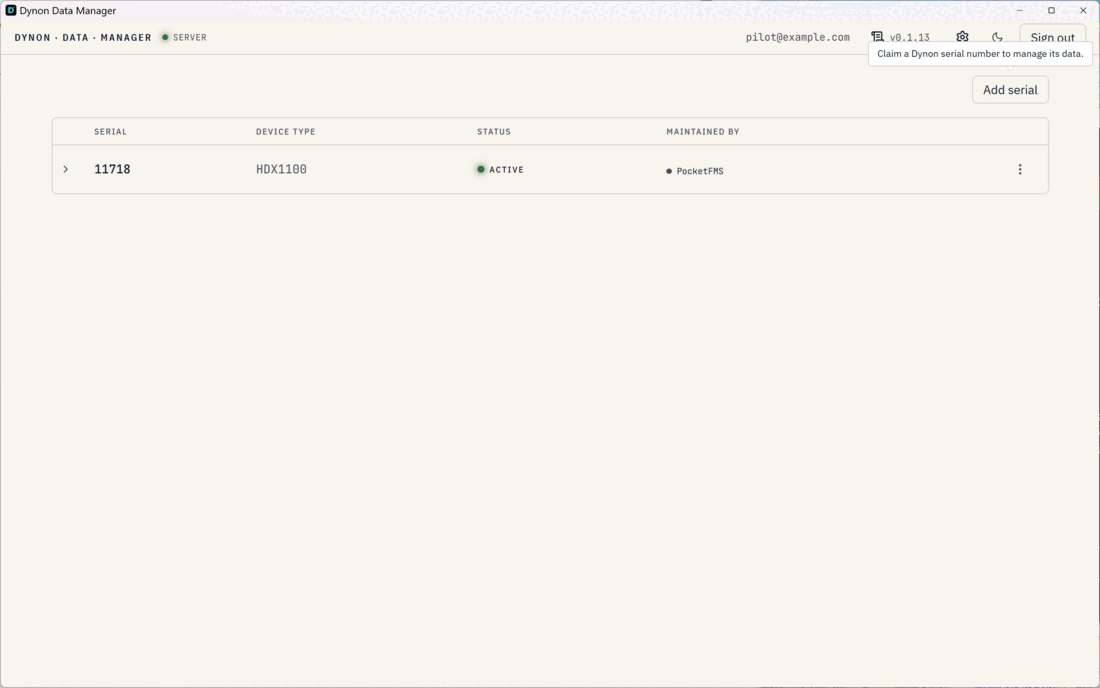
Your serial now appears in the list with its subscription status.
4 - Prepare your USB stick (important!)
A Dynon SkyView can only read sticks formatted as FAT32. Most new sticks already are, but it is worth checking once. Formatting erases everything on the stick, so use an empty one, or copy off anything you want to keep first.
A 16 GB or 32 GB stick is the sweet spot: it easily holds everything and can be fully formatted as FAT32. There is no benefit to a bigger one — Windows cannot format sticks larger than 32 GB as a single FAT32 drive, so the extra space would just go to waste.
On Windows
Plug the stick into your computer.
Open File Explorer, find the stick under This PC, right-click it and choose Format…
Under File system choose FAT32, then click Start.
On a Mac
Plug the stick into your Mac.
Open Disk Utility — in your Applications folder, inside the Utilities folder.
Click your USB stick in the list on the left, then click Erase at the top of the window.
Set Format to MS-DOS (FAT). That is simply what a Mac calls FAT32 — you will not see the word "FAT32" anywhere in the menu, and that is fine.
Set Scheme to Master Boot Record, then click Erase.
The program watches out for you. When you pick a stick later, Dynon Data Manager checks it. If it is not FAT32 it shows a warning such as "NTFS — DYNON REQUIRES FAT32", so you know before anything goes wrong.
5 - Copy the data to the stick
In the list, click your serial number to open its details.
Plug in your prepared USB stick.
Click Write Data to USB.
A list of connected sticks appears, each showing its free and total space. Click the stick you want to use. A stick that is already being written to is marked and cannot be picked twice.
A progress bar shows the copying. The first time downloads everything, so it can take a little while; after that it is much quicker, because the program remembers what it already has.
Wait until it finishes. That is it — your stick is ready.
Doing several aircraft? You can start a write for one serial and another at the same time — each gets its own progress bar.
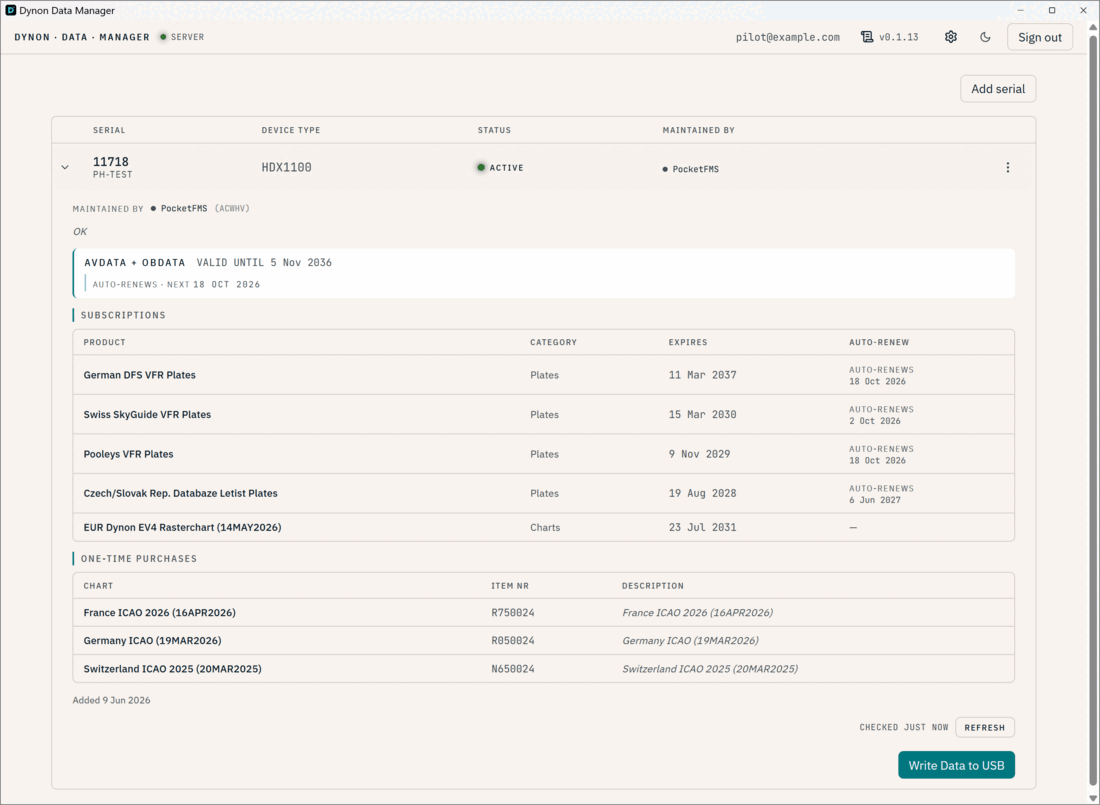
Click a serial to open its details. The "Write Data to USB" button is at the bottom.
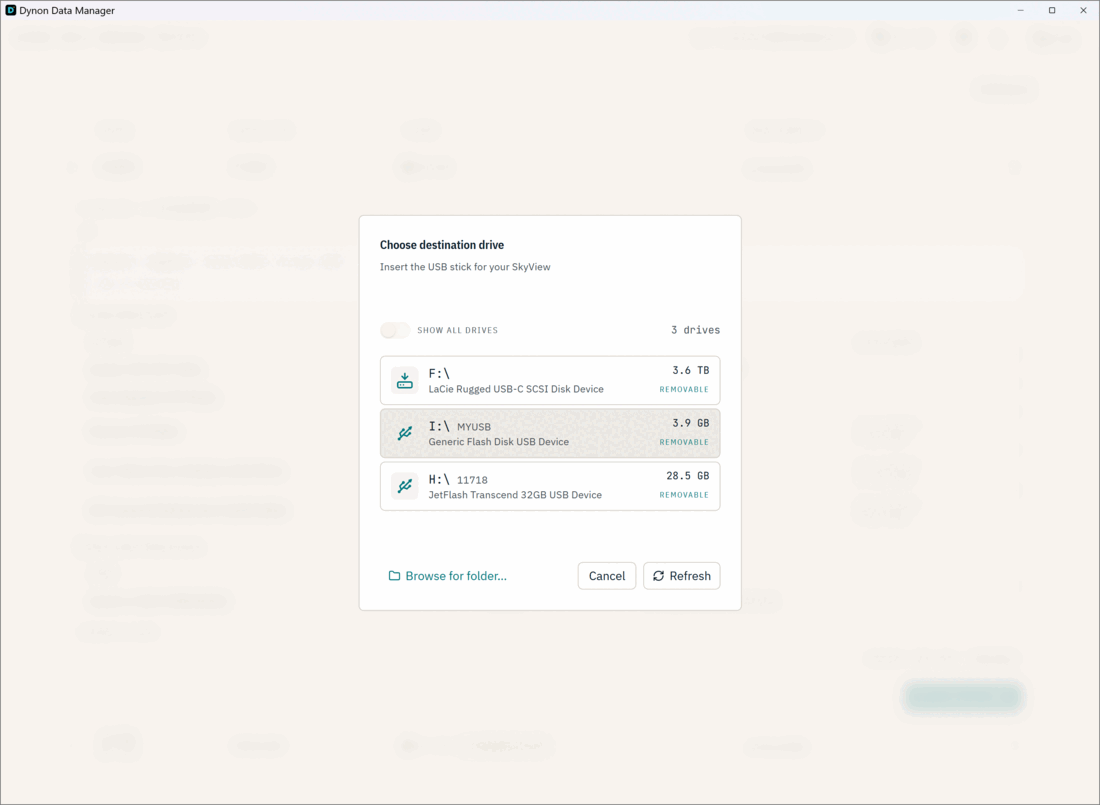
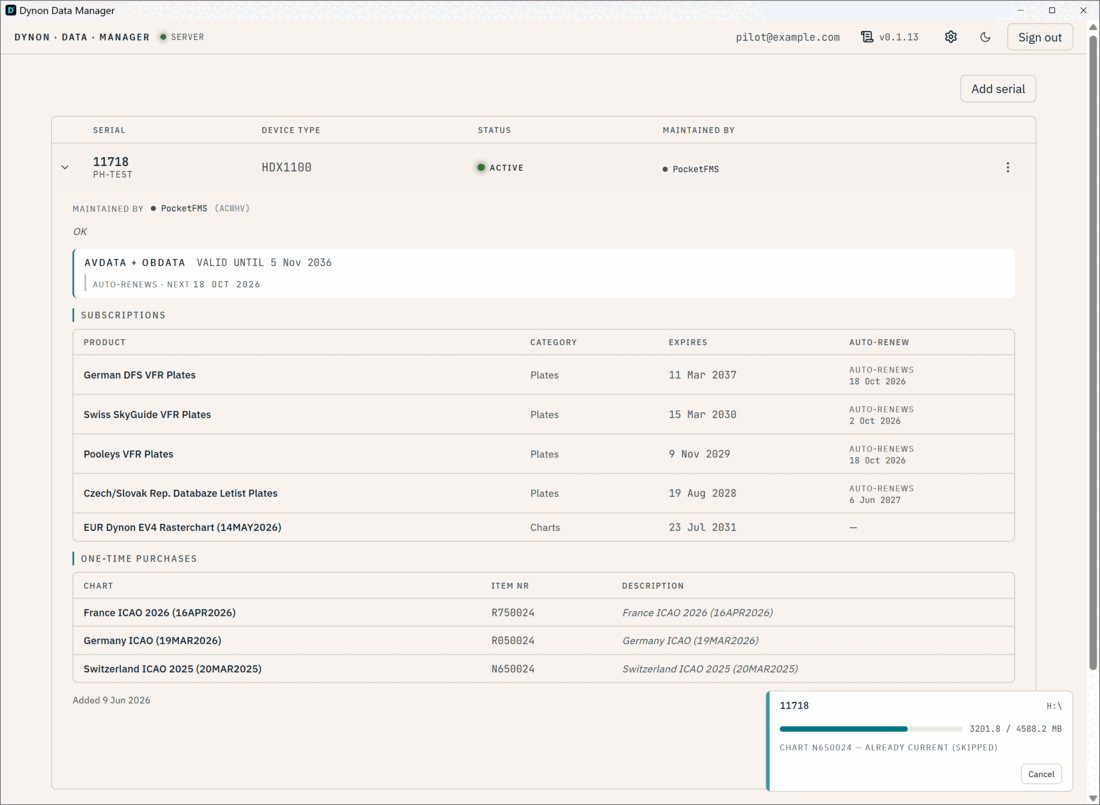
[ SCREENSHOT 10 — 10-write-complete.png ]
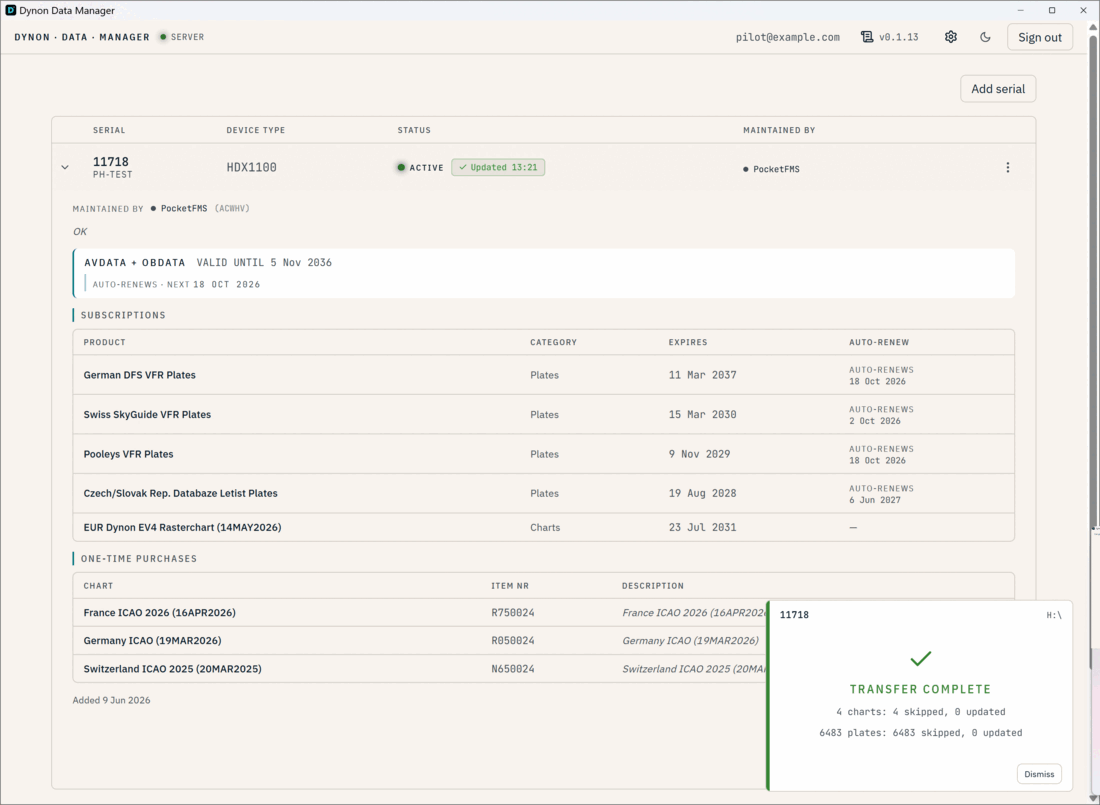
When it shows the transfer is complete, your stick is ready for the SkyView.
6 - Load the data into your SkyView
This last part happens in the aircraft, on the SkyView itself.
Safely remove the stick from your computer and take it to the aircraft.
With the SkyView powered on, insert the stick into its USB port.
Follow the SkyView's own data-update menu to load the new files.
The exact menu depends on your model and software version. We describe it per data type here:
Optional: let it copy automatically
If you update often, the program can start copying by itself when it recognises your stick — no clicking needed. Open Settings (the gear icon, top-right); under Auto-start there are two separate switches:
When I insert a USB stick, copy automatically — starts copying the moment you plug a recognised stick in while the program is open.
When the app launches with a stick already connected, copy automatically — does the same for a stick that was already plugged in before you opened the program.
Turn on whichever you like, or leave both off to stay fully in control. When they are off, plugging in a recognised stick simply shows a small pop-up with a Start button.
Naming your stick. If you label the USB stick with your serial number or your callsign, the program recognises it automatically next time.
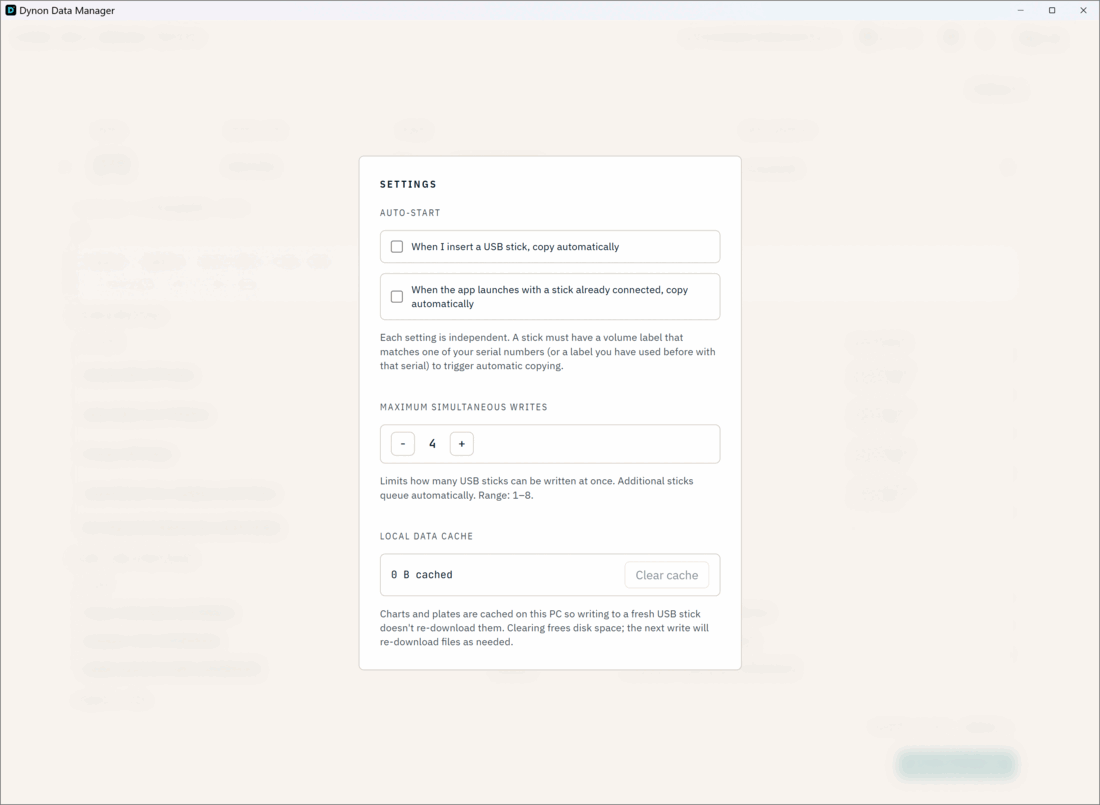
Settings: the two Auto-start switches, the simultaneous-writes limit, and Clear cache.
The coloured subscription labels
Each serial in the list carries a small coloured label, so you can see its status at a glance.
Green | Active subscription — you are good to update. |
Amber | Heads-up — for example the data is getting old, or a subscription is near its end. |
Red | A problem — for example the subscription has expired. |
Grey | Status unknown or not reachable right now — try the refresh button. |
Settings
Open Settings with the gear icon at the top-right. Besides the Auto-start switches you will find:
Maximum simultaneous writes — how many sticks can be copied at once. The default is fine for almost everyone.
Clear cache (under Local data cache) — the program keeps a copy of downloaded charts and plates on your computer so repeat writes are fast. This button empties that store to free up disk space; the data simply downloads again next time.
If something goes wrong
The SkyView will not read my stick.
Make sure the stick is formatted FAT32 — see step 4. This is by far the most common cause.It is stuck on "Waiting for browser…".
Switch to your web browser and finish logging in to EasyVFR there, including the Open button. The app continues by itself once you do.Copying seems slow the first time.
That is normal — the first copy downloads everything. Later copies reuse what is already on your computer and are much faster.A stick I plugged in before opening the app was not noticed.
Either re-insert it, or switch on the second Auto-start option in Settings.My SkyView keeps reporting "DATABASE NO LONGER CURRENT" at every start.
See this article.
Removing the program
On Windows: open Windows Settings → Apps, find Dynon Data Manager and choose Uninstall. You are asked whether to also remove your saved data — your login and downloaded data. Choose No to keep everything for a future reinstall, or Yes to remove it completely.
On a Mac: open your Applications folder and drag Dynon Data Manager to the Trash. Unlike Windows, a Mac does not ask about your saved data, so your login and downloaded data stay on the computer, ready for you if you ever install the program again.
Support
Still stuck? Contact PocketFMS / EasyVFR support, mention that you are using Dynon Data Manager, and include your SkyView serial number and the version number shown in the app next to the title.