

On This Page
✅ Requirements
A valid Frequent Flyer Membership or MGL Dataset-Only licence.
Optional for FFM users: 3rd party VFR Approach and Airport Plates Add-ons - Shop hereThe EasyVFR 4 app installed on desktop or mobile.
Download and activate EasyVFR 4An internet connection.
An SD card compatible with your MGL system.
🎥 Video Tutorial
Here's a video we originally made for Dynon users - the steps within the EasyVFR 4 app for MGL are the same with the difference that for MGL there are only one or two download items. For both MGL Data Only and FFM users, there is the Aviation data file called navidata.ewd, and for FFM users, there are the Approach Plates as well.
Using EasyVFR 4 App (Recommended for FFM users)
The EasyVFR 4 app already includes most of the data your MGL panel needs. It downloads the required data and fills your SD card in one go - quick and easy!
0 - Country Select for VFR Plates (FFM users only)
FFM users can select the country of their choice for the VFR plates. This is not managed inside the MGL EFIS Data Exchange screen. Instead, it is done by activating/deactivating countries in the EasyVFR 4 app itself. You can find Country Select by opening the Status card (select the red/orange/green button, second from the bottom right) -> Data -> scroll down to Country Select. Now the map zooms out and you can select the country of your choice by selecting it. Dark green countries are active, light green countries are inactive. Tip: Only activate countries you really need the VFR Plates and EasyVFR 4 app for. This will make the download of the VFR Plates and overall usage of the app much faster.
Note that the navidata for MGL covers all the compatible countries in our database regardless of whether you had activated it in the EasyVFR 4 app or not.
1 - Register your MGL Panel(s)
Before building your dataset, we need to know the serial number(s) of your panel(s). A Dataset will only load on the panels it was built for - all others will reject it.
Where to find the serial number
On the back of your MGL panel
Or via the System menu on the panel
👉 Only type the number part. Skip any 'OD' prefix or leading zeroes.
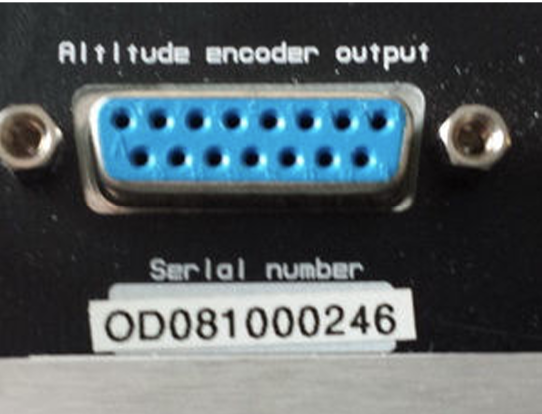
To register:
Open EasyVFR 4
Go to:
☰ Menu → Dynon and MGL EFIS → MGL Data SD Card BuildTap "Your MGL EFIS serial number" → Tap to Add
Enter your MGL panel serial number(s)
Leave the second box empty if you only have one panel
If you ever need to update the registered number, go to easyvfr4.aero/my-account/avionicsdata to change it yourself or ask the team.
2 - Download Your MGL Data
EasyVFR 4 will automatically list and download all valid products associated with your account.
Go to:
☰ Menu → Dynon and MGL EFIS → MGL Data SD Card BuildWhen available, tap the [Check for Updates] button
There are two optional data types you can download:Aviation data file: This is the navigation database for MGL to draw the MGL vector map and make it interactive. It covers all the countries in our database regardless of whether you had activated it in the EasyVFR 4 app or not.
Approach Plates - This includes the georeferenced VFR approach plates and airport diagrams for the countries you activated in your EasyVFR 4 app. (See step 0 - Country Select for more details)
Tap the [Download] button
The first download may take a while
Later downloads will be much faster
Once finished, proceed to copy the data to your SD card (step 3)
3 - Copy Data to Your SD Card
Insert your SD card into your device running EasyVFR 4
If not selected automatically, select it manually in the MGL EFIS Data Exchange screen
Tap [Copy to SD Card]
Confirm with [Yes] when prompted
Depending on the amount of data, this may take a few minutes to up to two hours. A popup will confirm when the process is complete.
4 - Unzip the Data
The Aviation data file is a zip file. You need to unzip it before using it in your MGL panel.
The file is zipped for a smaller download size, and the file name indicates for which AIRAC cycle the file is meant. A file name of MGLData_201801.0002.zip means that the Dataset inside the zip file (navidata.ewd) was built for the first AIRAC cycle in 2018. The .0002 is the subcycle: it's possible that we issue updated Datasets halfway through a cycle if required. Just unzip the file once the download completes and copy the navidata.ewd file to teh root of the SD card(s).
Alternative Method to Download Navidata
For both MGL Data Only and FFM users, there is an alternative way to download the navidata file. This method does not include the VFR plates.
1 - Register your MGL
Point your browser to easyvfr4.aero/my-account/avionicsdata.
You will be asked to log in:
Type the email address / username combined with the password you signed up with at easyvfr4.aero.
Open the MGL menu and follow the instructions.
After a minute of building your first Dataset, the page will refresh. Click the button on the bottom of easyvfr4.aero/my-account/avionicsdata [Download the AeroData for your Avionics].
2 - Download / Update
Once registered, we'll send you an email every 28 days when an update is available. It has a link to your personal download page. This web page lists all your products that are still valid / most recent.
The link to this download page is personal and never changes. Even if you somehow did not receive the reminder email, your updated Dataset will be available here. Bookmark it to have access without signing in.
If you have lost that link, please login at easyvfr4.aero/my-account/avionicsdata with your easyvfr4.aero account email or username and password.
For those who still only have the old PocketFMS account: you can log in with your licence email and registration number at members.pocketfms.com.
Download Aviation Data
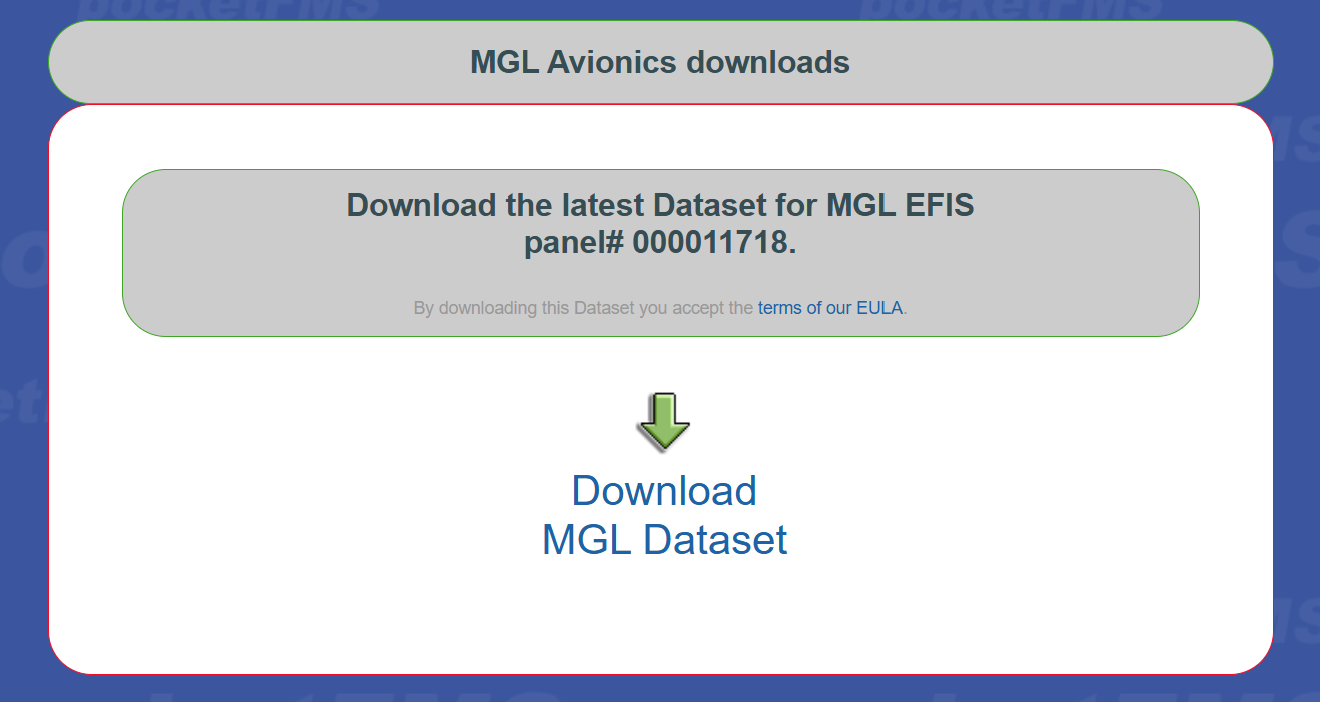
Your personal download page starts with https://members.pocketfms.com/avionicsdatafor.asp?userid= followed by your userid. This page offers to download the MGL Dataset.
If you click the green arrow with link text "Download MGL Dataset", the download will start.
The file is zipped for a smaller download size, and the file name indicates for which AIRAC cycle the file is meant. A file name of MGLData_201801.0002.zip means that the Dataset inside the zip file (navidata.ewd) was built for the first AIRAC cycle in 2018. The .0002 is the subcycle: it's possible that we issue updated Datasets halfway through a cycle if required. You need to unzip it before using it in your MGL panel.
Use Your SD Card in Your MGL Panel
Installation on the EFIS is type dependent; please refer to the MGL documentation that came with the panel.
Insert it into your MGL EFIS panel
For most MGL EFIS no additional installation is required on the panel
Make sure your panel firmware is up to date
For 2-panel setups:
You may copy the SD card to a second card and use that in your second panel - only if both serial numbers are registered with us. If not, the second panel will reject the dataset.
Using Plates on MGL Panels
Plates are supported on many MGL panels. Please refer to the MGL documentation for usage on your specific model.
📘 For iEFIS systems: How to use plates on MGL iEFIS (PDF)
Need Help?
If something doesn't work as expected, we're happy to help!
Email: [email protected]
Or use the blue "Ask the team" bubble at the bottom-right of this page
When contacting support, please mention:
Which step you were on
Any error messages or unexpected behavior
Include screenshots or a short video if possible