

NOTES:
This article is for power users only! The setup is not for end users but for administrators. No technical knowledge is required, but experience with the EasyVFR 4 app is required and knowledge with XML is helpful.
Ask support: The article is continuously in progress. If something is missing or not clear, please reach out to support for personal help and we will update the article for the benefit of all users.
On this page:
Overview
What is Plan(e)station?
Plan(e)station is not a switch in the app. It is a configuration you set using a small XML file. That XML defines how EasyVFR 4 behaves for your use‑case.
Think of two common use‑cases. You can mix and match options in the XML for your situation.
Club/Rental Plane use‑case: Tablets installed in aircraft. Stay consistent for every pilot. Reset to a clean setup. Keep the screen on when the master is ON.
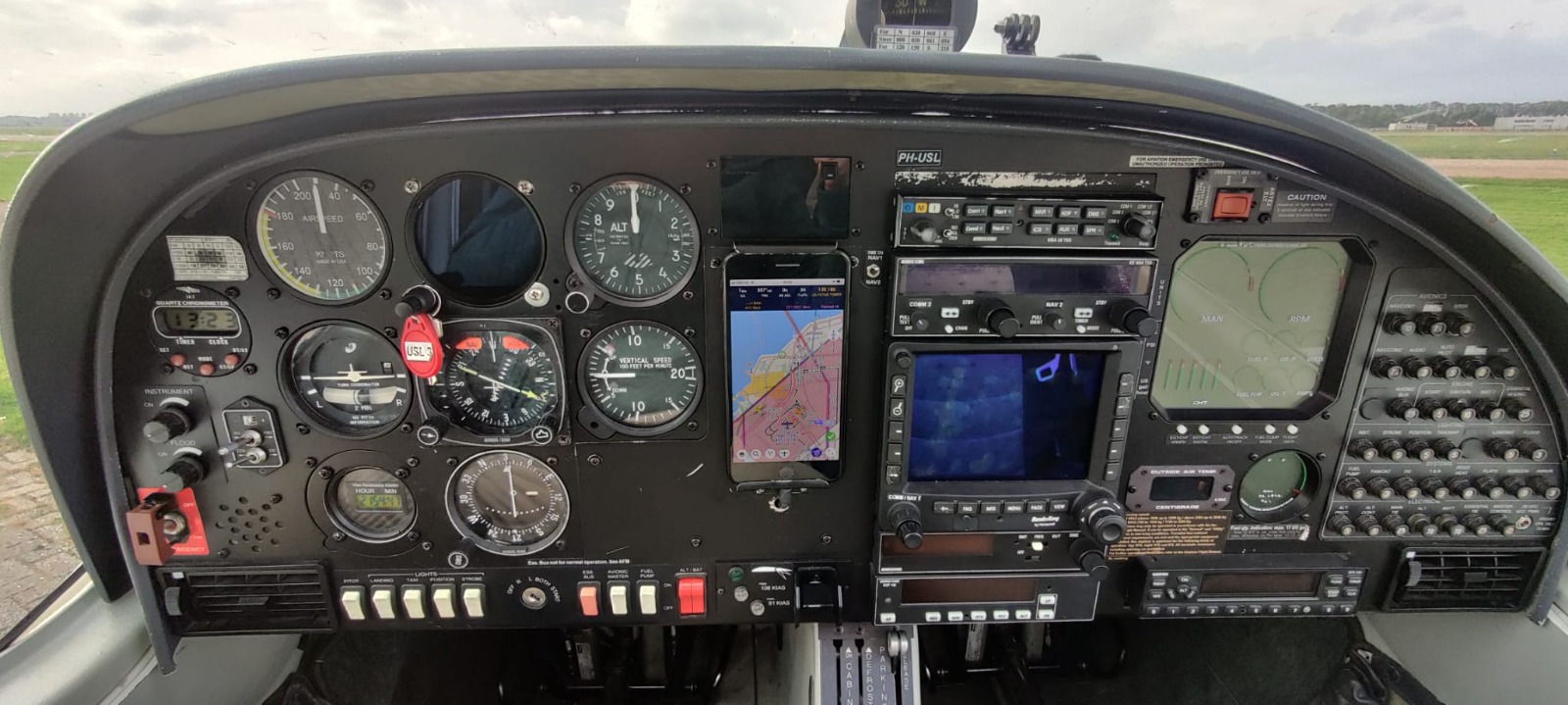
Briefing Room use‑case: Ground‑only kiosks in dispatch or club rooms. Secure. Simple. Always ready for planning.
Club/Rental Plane use-case
Ideal for tablets installed in aircraft. Stay consistent for every pilot. Reset to a clean setup. Keep the screen on when the master is ON.
What you want
Power‑aware screen control: When external power is present (e.g., via the aircraft master switch), EasyVFR 4 keeps the screen awake. After power is removed, the device stays operational for a short, configurable period (e.g., 5 minutes) and then follows the device’s screen timeout.
Clean startup snapshot: When configured via PublicUse XML, EasyVFR 4 stores your current configuration as the “startup settings”. Each time external power returns (start of a new flight), EasyVFR 4 resets to this clean baseline to avoid configuration drift.
Automatic aero data refresh: When the device connects to a known Wi‑Fi network (for example, hangar Wi‑Fi), EasyVFR 4 automatically downloads important data like NOTAMs, AUPs and weather.
Setup steps
Your default app settings: Prepare your preferred default layout and settings in the EasyVFR 4 app.
Create XML: Create a PublicUseConfig.xml with aircraft‑friendly options (see Create PublicUseConfig.xml).
Open XML: On Android and iOS: Transfer (when created on another device like a desktop) and open the XML on the EasyVFR 4 device. On Windows, copy it to
c:\\Program Files (x86)\\EasyVFR4\\Inboxwhile EasyVFR 4 is running.Wi‑Fi: Set the device to auto‑connect to Wi‑Fi networks in and around the hangar and on the apron so automatic updates can run on the ground.
Lock OS and auto‑start the EasyVFR 4 app: Select kiosk/single‑app mode using Apple Configurator (iOS) or Fully Kiosk Browser & Lockdown (Android). See Device lockdown (iOS & Android).
Test: Cycle aircraft power to test: when the master turns ON, EasyVFR 4 resets to your clean default.
Tips & troubleshooting
Tips:
Verify the default setup after loading the XML; make desired changes and reload the XML.
Keep the tablet on external power during preflight to ensure the screen stays on and updates complete.
Ensure strong hangar Wi‑Fi coverage where aircraft are parked for reliable background downloads.
Document who can change settings and who can reload the XML in your club/school procedures.
Troubleshooting:
Screen does not stay on while powered: Confirm the XML is active and the device is receiving external power. Check kiosk settings (iOS/Android) for sleep overrides.
App does not reset to clean state: Reload the XML, then cycle external power and retest.
Data not updating on the ground: Verify Wi‑Fi connection to a known network and that automatic downloads are allowed on that network.
Briefing Room use-case
Ideal for dispatch desks, club briefing rooms, and wall‑mounted displays.
What you want
Auto update: Automatic updates of AeroData, NOTAMs, AUPs, and weather.
Auto reset after inactivity: Auto‑reset when no user interaction is detected for a set number of minutes.
Secure: Supports lockdown of the device to prevent users from changing the operating system settings.
Setup steps
Your default app settings: Prepare your preferred default layout and settings in the EasyVFR 4 app. The state of the app is captured when the XML is applied and used as the default setup for every auto-reset.
Create XML: Create a PublicUseConfig.xml with kiosk‑friendly options (see PublicUseConfig XML reference).
Open XML: On Android and iOS: Transfer (when created on another device like a desktop) and open the XML on the EasyVFR 4 device. On Windows, copy it to
c:\\Program Files (x86)\\EasyVFR4\\Inboxwhile EasyVFR 4 is running.Lock OS and auto start the EasyVFR 4 app: Select kiosk/single‑app mode using Apple Configurator (iOS) or Fully Kiosk Browser & Lockdown (Android). (see Device lockdown (iOS & Android))
Test: Test the variables you set in the XML, e.g., auto updates and auto‑reset after inactivity.
Tips & troubleshooting
Verify the default xml setup after loading the XML; make desired changes and reload the XML.
Position the screen to avoid glare; consider continuous power for wall displays.
If the app exits iOS kiosk mode, re‑apply Single‑App/lockdown profile via your MDM or admin method.
Setup
Set preferred default app settings
Configure your ideal default layout and settings in the EasyVFR 4 app. For most users and regions, the app’s default settings after a fresh app installation are suitable. However, you may wish to adjust certain Map Layer settings, such as raising or lowering the airspace altitude filter, to better suit your needs.
You might also want to set up the Aircraft Profile to match the specific aircraft this EasyVFR device will be used in, or to reflect the most common aircraft in your club or school.
Recommended app settings for shared devices (adjust per your procedures):
Aircraft Profile: EasyVFR 4 menu (select logo button) → Aircraft Profile: Select the correct aircraft profile by either using the Simple mode or preferably Pro Aircraft mode.
Auto Downloads: Status card (select the red/yellow/green Status button) → Data: Automatic Updates → ON.
Datra and location updates even when in background: Status card → Position: Location updates even when app in background → ON.
Map Layers: Adjust the airspace altitude filter and other layers to suit operations at your club/school or aircraft installation.
The app’s state is saved as the default setup when the XML is applied, and this setup is restored after every auto-reset. If you need to update your default app settings later, you can do so easily—see Change the default app settings for instructions.
Create PublicUseConfig.xml
Before defining the XML, locate the latitude and longitude in decimal degrees of the location where the EasyVFR device will be installed. This is used to reset the app to after inactivity or when mains power toggles ON when tehre is no GPS fix yet/available.
Plan(e) Station mode is enabled by opening a small XML configuration on the device. There is no switch in the system menu. When processed, EasyVFR 4 stores the current appsettings and layout as the default setup. It resets to that default after inactivity or when mains power toggles ON.
How to enable PublicUse?
Place an XML file (any name with
.xmlextension) that contains the root objectEasyVFRPublicUseConfig.Apply it: On Android and iOS, open the XML and choose Open with EasyVFR 4. On Windows, copy it to
c:\Program Files (x86)\EasyVFR4\Inboxwhile EasyVFR 4 is running.
When the XML includes a child object <Inactivity ... />, PublicUse is enabled. If there is no <Inactivity> object, PublicUse is disabled.
Example for Club/Rental Plane use-case
Download example ClubRentalPlanePublicUseConfig.xml
Tip: If the XML opens in your browser instead of downloading, right-click the link and select "Save link as..." to download the file.
<?xml version="1.0" encoding="ISO-8859-1" ?> <EasyVFRPublicUseConfig xsi:noNamespaceSchemaLocation="http://www.PocketFMS.com/XMLSchemaEasyVFRPublicUseConfig-1.0.0.xsd" xmlns:xsi="http://www.w3.org/2001/XMLSchema-instance"> <Inactivity ResetAfterSeconds="3600" WarnBeforeForResetSeconds="30" ResetDefaultLatitude="52.45162" ResetDefaultLongitude="5.51706" ResetDefaultCameraAltitudeKM="20.0" SleepWhenNoMainsPower="yes" ResetWhenMainsTogglesOn="yes" AlwaysFlightmode="yes" AutodownloadsWhenSpeedZero="yes" BreadcrumbsLimitToMainsTurnedOn="yes" /> </EasyVFRPublicUseConfig> Example for Briefing Room use-case
Download example BriefingRoomPublicUseConfig.xml
Tip: If the XML opens in your browser instead of downloading, right-click the link and select "Save link as..." to download the file.
<?xml version="1.0" encoding="ISO-8859-1" ?> <EasyVFRPublicUseConfig xsi:noNamespaceSchemaLocation="http://www.PocketFMS.com/XMLSchemaEasyVFRPublicUseConfig-1.0.0.xsd" xmlns:xsi="http://www.w3.org/2001/XMLSchema-instance"> <Inactivity ResetAfterSeconds="600" WarnBeforeForResetSeconds="30" ResetDefaultLatitude="52.45162" ResetDefaultLongitude="5.51706" ResetDefaultCameraAltitudeKM="10.0" SleepWhenNoMainsPower="yes" ResetWhenMainsTogglesOn="no" AlwaysFlightmode="no" AutodownloadsWhenSpeedZero="yes" BreadcrumbsLimitToMainsTurnedOn="no" /> </EasyVFRPublicUseConfig> Parameters to set in the XML
ResetAfterSeconds: Seconds of no user interaction before resetting to the default setup. For Briefing Room (PlanStation), ~600 (10 minutes) is typical. For Club/Rental Plane (PlaneStation), use a high value (e.g., 36000 = 10 hours) or rely on mains‑power toggles.
WarnBeforeForResetSeconds: Planned feature- Warn user before a reset occurs. (Altough not yet implemented, do set so it is used when implemented.)
ResetDefaultLatitude, ResetDefaultLongitude, ResetDefaultCameraAltitudeKM: Fallback map position/zoom used when no location source is available.
SleepWhenNoMainsPower: yes/no. When mains power is removed, allow the device’s normal sleep timeout to take over (useful in aircraft to save battery when master is OFF).
ResetWhenMainsTogglesOn: yes/no. Reset to the default setup when mains transitions from OFF to ON (e.g., aircraft master switched ON).
AlwaysFlightmode: yes/no. When yes, EasyVFR 4 always engages Flying mode automatically (plane installations only).
AutodownloadsWhenSpeedZero: yes/no. When AlwaysFlightmode is yes, allow aerodata downloads (NOTAMs/METARs/TAFs/AUP) while not moving on the ground.
BreadcrumbsLimitToMainsTurnedOn: yes/no. Privacy option to avoid rendering previous flight breadcrumbs when mains turns ON.
Timing matters. When loading the XML, EasyVFR 4 captures the current app settings and layout (window positions, selected aircraft profile, magnification levels, etc.) as the default. Inactivity resets and mains‑power toggles restore this captured default.
Edit PublicUse / Change PlaneStation mode settings
After EasyVFR 4 imports a PublicUse XML from the Inbox or via “Open with EasyVFR 4”, the file is removed from the Inbox and moved to c:\\Program Files (x86)\\EasyVFR4\\localstorage.
Where the active config lives:
c:\\Program Files (x86)\\EasyVFR4\\localstorage.Editing in place: Only possible on Windows and Android.
iOS and Android re‑import: Open a newer XML with EasyVFR 4 to overwrite the existing PublicUse settings.
Windows re‑import: Copy the updated XML into
c:\\Program Files (x86)\\EasyVFR4\\Inboxwhile EasyVFR 4 is running; it will replace the current settings.
Any newly imported PublicUse XML completely replaces the previous PublicUse settings, whether opened on iOS/Android or placed in the Windows Inbox.
Change the default app settings
To change the default app settings that PublicUse resets to:
Disable PublicUse: Apply RemovePublicUseConfig.xml (see Disable Plan(e) Station mode or download).
Adjust EasyVFR 4: Open the app and set your preferred layout, profiles, map layers, downloads, and preferences.
Re‑enable PublicUse: Import your updated PublicUse XML. On Android/iOS, open with EasyVFR 4. On Windows, copy it into
c:\\Program Files (x86)\\EasyVFR4\\Inbox.
When the PublicUse XML is applied, EasyVFR 4 captures the current app state as the new default used for future auto‑resets.
Device lockdown and auto‑start of the EasyVFR 4 app (iOS & Android)
If you want to lock down the iOS or Android device to prevent users from changing system settings and from installing or opening other apps, use Apple Configurator (iOS) or Fully Kiosk Browser & Lockdown (Android).
iOS (Apple Configurator Single‑App)
For club or school environments we recommend Single‑App operation using Apple Configurator (requires a Mac). Once enabled, iPad/iPhone settings cannot be changed on the device and EasyVFR 4 auto‑starts when the tablet powers on. If the battery fully drains, it restarts in Single‑App mode; use Apple Configurator to unlock.
Suggested iOS settings in Apple Configurator
Settings → Display & Brightness: Select Auto‑Lock and set a practical value (e.g., 5 minutes).
Settings → Display & Brightness: Select Appearance → Automatic (Sunset/Sunrise) if desired.
Settings → Display & Brightness: Select Raise to Wake → OFF.
Settings → Display & Brightness: Select Brightness → MAX.
Settings → General → AirDrop: Select Everyone (per your policy).
Settings → General → About: Select Name and enter a meaningful name.
Settings → Privacy → Location Services: Select Location Services → ON.
Settings → Privacy → Location Services → EasyVFR: Select Always.
Settings → General → Software Update: Select Automatic Updates → OFF (manage updates on the ground).
Android Kiosk Mode
Android Kiosk Mode lets you lock the device to one app (or a small set of apps) and restrict access to the rest of the system. This is useful for dedicated EasyVFR 4 devices in aircraft or briefing rooms.
Third‑party kiosk app (Fully Single App Kiosk)
Install Fully Single App Kiosk from Google Play: play.google.com.
Launch the app, set an admin PIN, select Single‑App → choose EasyVFR 4, grant requested permissions, and start Kiosk Mode.
When prompted, set Fully Single App Kiosk as the default launcher.
Recommended settings in the app:
Device Management → Keep Screen On = Enabled
Device Management → Launch on Boot = Enabled
Power Settings → Turn Screen On on Power Connect = Enabled
Best practices
Restrict access to system settings and disable hardware buttons where possible.
Enable auto‑start of EasyVFR 4 on boot and when external power is applied.
Ensure reliable Wi‑Fi on the ground for data updates.
Document the admin PIN and exit procedure for maintenance.
For an overview of Android kiosk options and screen pinning, see Bosstab’s Android Kiosk Mode guide.
Disable or remove Plan(e) Station mode
To stop Plan(e) Station mode, process an empty PublicUse configuration.
Create XML: Save the file below as RemovePublicUseConfig.xml.
Apply it: On Android and iOS, open the XML and choose Open with EasyVFR 4. On Windows, copy it to
c:\Program Files (x86)\EasyVFR4\Inboxwhile EasyVFR 4 is running.Result: EasyVFR 4 disables PublicUse; the app no longer auto‑resets. To re‑enable, load a PublicUse XML that contains an
<Inactivity ... />element.
RemovePublicUseConfig.xml
Any PublicUse XML without an <Inactivity> element disables Plan(e) Station mode.
Download example RemovePublicUseConfig.xml
Tip: If the XML opens in your browser instead of downloading, right-click the link and select "Save link as..." to download the file.
<?xml version="1.0" encoding="ISO-8859-1" ?> <EasyVFRPublicUseConfig xsi:noNamespaceSchemaLocation="http://www.PocketFMS.com/XMLSchemaEasyVFRPublicUseConfig-1.0.0.xsd" xmlns:xsi="http://www.w3.org/2001/XMLSchema-instance"> </EasyVFRPublicUseConfig>
Common questions
The XML isn’t recognized: Verify the file has a
.xmlextension, the root element isEasyVFRPublicUseConfig, and you applied it correctly: On Android/iOS open with EasyVFR 4; on Windows place it inc:\Program Files (x86)\EasyVFR4\Inboxwhile the app is running. If it still doesn’t import, re‑download an example and try again.Where does the XML go after import? It’s moved from the Inbox to
c:\Program Files (x86)\EasyVFR4\localstorage. Editing in place is possible on Windows and Android. See Edit PublicUse / Change PlaneStation mode settings.How do I change the default app settings later? Disable using RemovePublicUseConfig.xml, adjust your app to the new desired state, then re‑import your PublicUse XML. See Change the default app settings.
How do I revert or turn it off completely? Apply RemovePublicUseConfig.xml. See Disable Plan(e) Station mode.
Where can I get example XML files? Download: Club/Rental Plane, Briefing Room, Remove PublicUse.
Safety & responsibility
Use Plan(e)station responsibly. Keep things simple and safe.
Pilot in command: You remain responsible for data currency, configuration, and the safe operation of connected equipment.
Battery care: Enable battery protection (e.g., Optimized Battery Charging on iOS, Battery protection on Android). Avoid keeping the device at 100% on mains for long periods. Aim for 20–80% where practical. Use a timer or smart plug for long‑term charging, ensure good ventilation, and use certified chargers and cables.
OS and app updates: Perform configuration changes and software updates on the ground, not just before a flight.
Two independent sources: Always keep independent navigation references and procedures available.