Overview
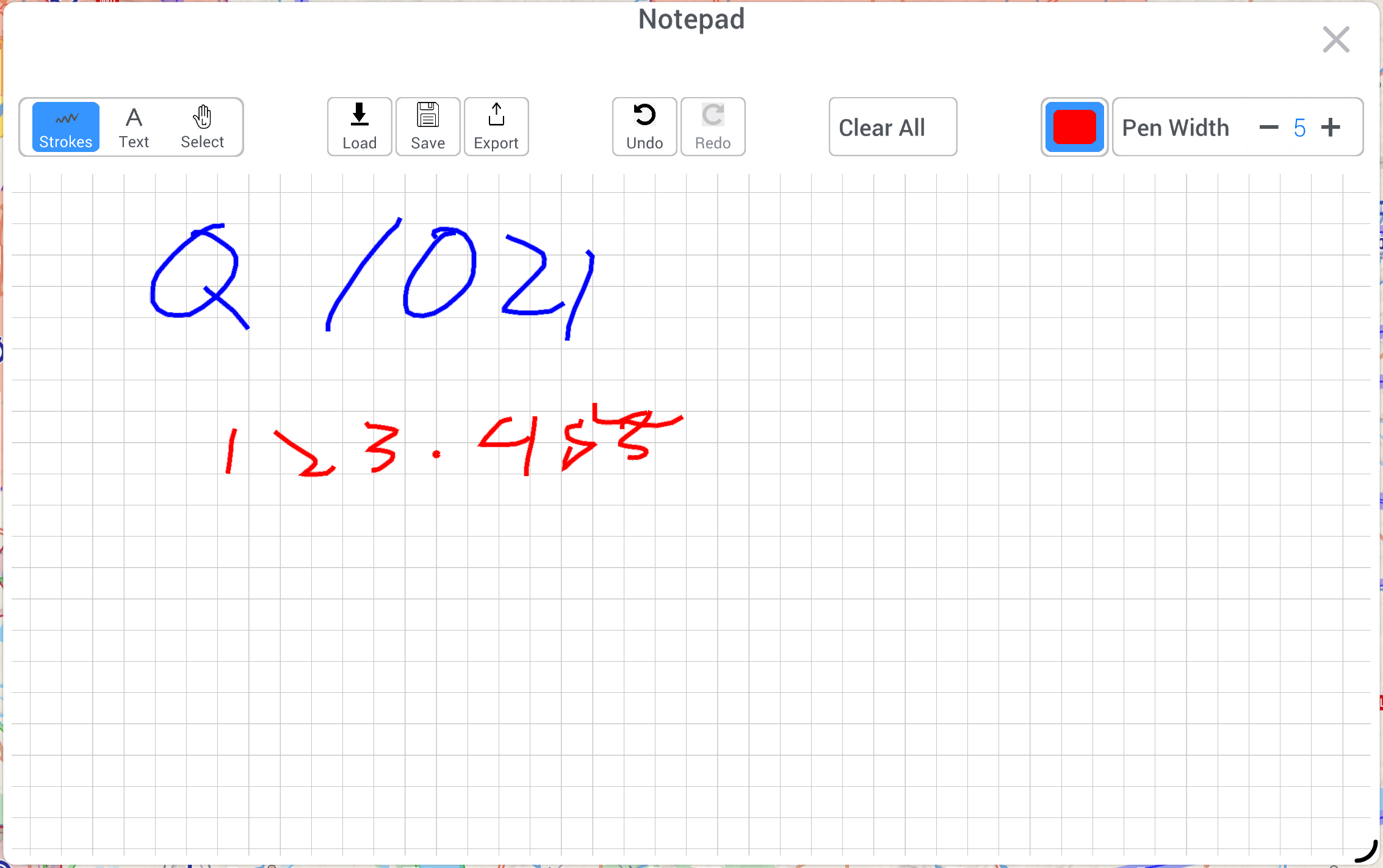
The Note Pad is your kneeboard, built into EasyVFR 4. Use your finger or a stylus to write the way you would on paper, or type text where you need it. The page has a grid background to help you keep your notes neat.
Open the Note Pad
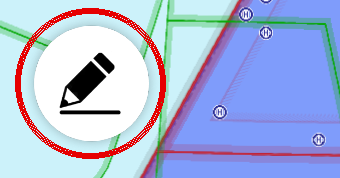
Select the Note Pad button (✏️) at the top left of the map.
To close the Note Pad, select X at the top right. Your note stays as it is. When you close EasyVFR 4, your current note is saved automatically and is back when you open the app again.
Write and draw
The toolbar at the top has three modes:
Strokes: draw with your finger or stylus.
Text: select anywhere on the page and type.
Select: select strokes or text to move, resize or delete them.
To change how you write:
Color: select the color button to switch between black, red and blue.
Pen Width: select − or + to choose from 10 widths, from fine lines to bold strokes.
Tip: strokes you draw close together are grouped automatically. A handwritten word or frequency then moves as one item.
Select, move and resize
Select Select in the toolbar.
Select a stroke or text on the page. A blue frame with 8 handles appears around it.
Change the selected item:
Move: drag it.
Resize: drag one of the handles.
Color: select the color button.
Pen Width: select − or +.
Delete: select Delete at the right of the toolbar.
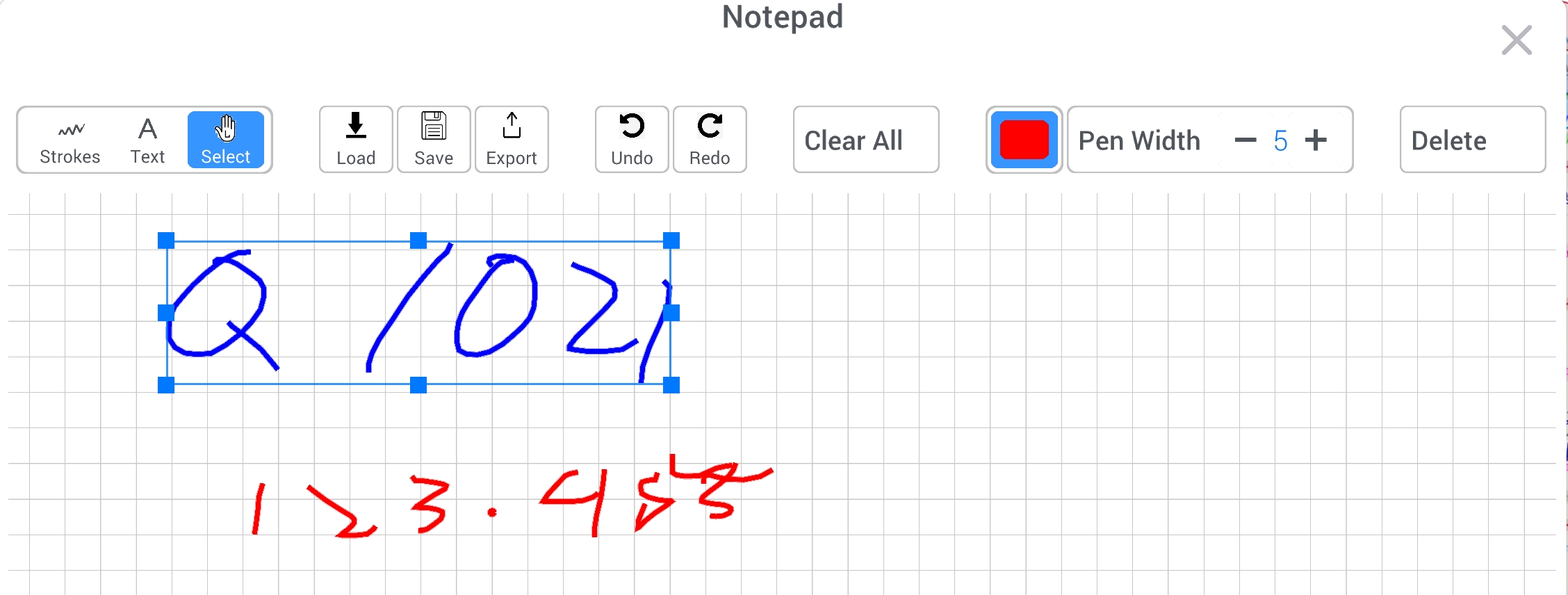
Changed your mind? Undo and Redo work for these changes too.
Undo, redo and clear
Undo and Redo step back and forward through your last 20 changes.
Clear All removes everything from the page.
Zoom and move around
Zoom: pinch with two fingers to zoom from 50% to 400%.
Move around: drag with two fingers.
Save and load notes
Save a note:
Select Save.
Enter a name and, if you like, keywords. Keywords make a note easy to find later.
Select the save button.
Load a note:
Select Load.
Find your note. You can search, and sort by date, name or favorites.
Select the note to open it.
In the list, select the bookmark icon to mark a note as a favorite. Select the trash can to delete a note. Deleted it by accident? Select UNDO within 5 seconds.
Export and share
Select Export to create a PDF of your note. Share it by email, AirDrop or any other sharing option on your device.
You can also include your Note Pad as a page in the TripKit PDF, so your notes are part of your complete flight briefing.
Sync across devices
Saved notes sync automatically to all your devices. If you're offline, your changes are queued and sync as soon as you're back online.