

NOTE: This article is continuously in progress. If something is missing or not clear, please reach out to support for personal help and we will update the article for the benefit of all users.
On this page:
NMEA
EasyVFR4 is capable of composing various NMEA sentences sourced from various inputs like the phone or tablet own internal GPS.
NMEA (National Marine Electronics Association) is a standard communication protocol used by GPS receivers and other marine or aviation instruments to exchange data. It defines a simple, text-based message format (called "sentences") that convey information such as position, speed, time, heading, and navigation details. Because it is widely adopted and easy to parse, NMEA allows devices from different manufacturers to interoperate seamlessly.
Supported NMEA Sentences
EasyVFR 4 can generate the following sentences. Enable only what your connected equipment requires.
GPRMC | Recommended Minimum Specific GNSS Data | Essential navigation data including time, position, speed, course, and status. |
GPRMB | Recommended Minimum Navigation Information | Cross‑track error, active/from‑to waypoint IDs, range, bearing, and steering guidance. |
GPAPB | Autopilot Sentence “B” | Steering guidance for autopilots including cross-track error, bearing to waypoint, waypoint ID, and arrival status. |
PGRMH | Garmin specific | Magnetic heading along with vertical track error for guidance relative to a desired vertical path. |
GPVTG | Course Over Ground and Ground Speed | Track made good (true and magnetic) and speed over ground |
GPGGA | GPS Fix Data | Fix time, latitude, longitude, fix quality, number of satellites, HDOP, altitude, and geoid separation. |
Configure GPS-Sharing and Autopilot
Set up which sentences are sent and how they are transmitted:
Open settings: EasyVFR 4 menu (select the logo button) → System → GPSSharing and Autopilot Settings.
Select sentences: Enable the NMEA sentences your equipment expects (e.g., GPRMC, GPRMB, GPAPB for many autopilots).
Choose outputs: Enable UDP, TCP, or both, and set the target IP/port as required by your receiver or bridge device.
Confirm source: Ensure your desired GPS source is active under Status Card (select the green/yellow/red Status button) → Position → Possible GPS Sources.
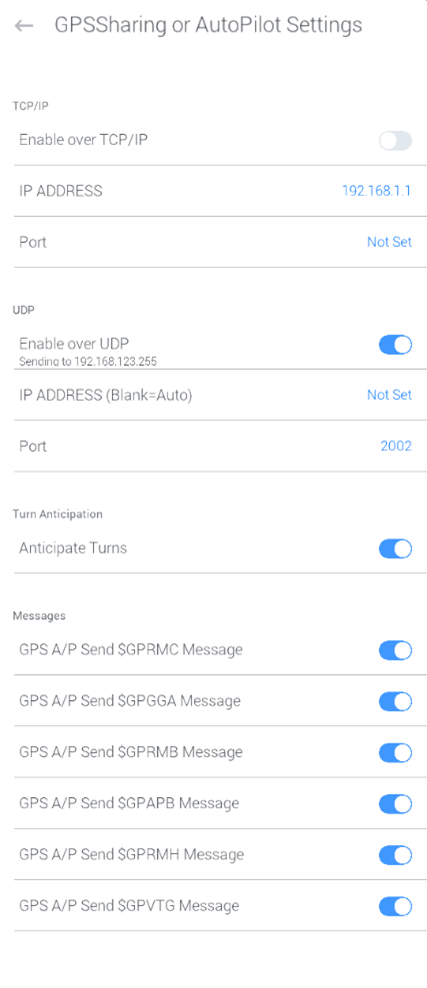
Tip: Some devices only act on navigation guidance when a route is active. Load/confirm your route so RMB/APB guidance is populated.
Network Output: TCP vs. UDP
UDP (Broadcast/Unicast): Lightweight, one‑to‑many capable, ideal for sending to multiple listeners on the same Wi‑Fi network. Configure destination IP/port (broadcast or specific host). Most stable.
TCP: Connection‑oriented, one‑to‑one, preferred by some bridges that expect a client/server stream. Configure the correct host IP/port per your receiver.
Make sure both devices are on the same (Wi-Fi) network, ports match on sender/receiver, and any firewalls allow the chosen protocol/port.
Using RS-232 Serial Converters
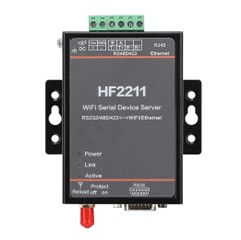
If your autopilot/EFIS expects RS‑232 NMEA input, use an Ethernet/Wi‑Fi to serial bridge. Our development and testing used the HF2211 module as an example, but other Ethernet/Wi‑Fi‑to‑serial modules with similar capabilities work as well.
Join the network: Configure the bridge to join your cockpit/tablet Wi‑Fi or create its own access point.
Set network mode: Choose UDP or TCP to match what you configured in EasyVFR 4.
Map to serial: Assign the network stream to the serial port and set the serial parameters required by your target device (typical NMEA baud rates are 4800 or 9600 bps; check your autopilot/EFIS manual).
Wire to avionics: Connect the converter’s RS‑232 TX (and GND) to the device’s NMEA/NAV data input per its installation guide.
We liked to use the HF2211 for its flexible network options (Access Point/client, TCP/UDP). Any comparable Ethernet/Wi‑Fi to serial module should work when configured correctly.
Common Questions (FAQ)
Which sentences do most autopilots need?
Commonly GPRMC (position/speed) plus GPRMB and GPAPB (guidance). Check your device manual.Do I need an active route?
Yes, for guidance (RMB/APB) most devices require that a route is active in EasyVFR.Can I send data to multiple devices?
Yes. Use UDP broadcast or multiple unicast targets. TCP is typically one‑to‑one.What IP/port should I use?
Use the host and port expected by your receiver or serial bridge. Both ends must match, and firewalls must allow the traffic.How can I test that data is being sent?
On another device on the same Wi‑Fi, connect to the configured IP/port using an NMEA viewer or a simple socket tool. You should see lines like$GPRMC,...*hh.Will this work in the background?
Mobile OS'es may restrict background networking/GPS. For best results, keep EasyVFR in the foreground and allow background location when needed.Is there any security consideration?
Prefer a private cockpit Wi‑Fi/AP. Avoid open/public networks for navigation data.I don’t see the GPSSharing option.
Update to EasyVFR 4 version 4.6.1 or newer. If still missing, contact support.Need help?
We’re happy to help. Use the in‑app “Ask the team” button or email [email protected].
Troubleshooting
No data received: Verify sentences are enabled in EasyVFR, network IP/port/protocol match the receiver, and both devices share the same Wi‑Fi. Check OS firewall rules on desktops.
Autopilot not steering: Ensure a route is active so RMB/APB contain guidance; confirm your autopilot supports the specific sentences you enabled.
Serial issues: Confirm RS‑232 wiring (TX/GND), correct baud rate and serial settings per the target device.
Intermittent data: Avoid Wi‑Fi sleep modes and power‑saving settings on tablets; keep signal strength good.
Notes and Compatibility
NMEA output is available from EasyVFR 4 version 4.6.1 and newer.
Only enable the sentences your equipment requires to reduce bandwidth and processing.
Always consult your avionics/autopilot installation manual for supported sentences and electrical interface requirements.